Teach your AI
Knowledge
Who can open itViewer: noOperator: noSupervisor: noAdmin: yes
The AI answers your visitors from what you add here. Add only public content: the AI can put anything it reads into its own words for any visitor.
Where to find it
Section titled “Where to find it”Work, then Knowledge. Only an Admin can open it (Roles). It has three tabs:
| Tab | What you do there |
|---|---|
| Sources (this page) | Add knowledge, see what the AI knows and what needs you |
| Test and fix | Ask a question as a visitor would, and fix a wrong reply |
| Answers | Write the exact answer to a question |
The three-dot More for Knowledge menu at the top right holds Update now, Update history and Settings (Knowledge settings). On the Answers tab they are at the end of that tab’s own menu.
Start with your website
Section titled “Start with your website”While nothing has been added, Sources shows one card, “Teach the AI about your business”.
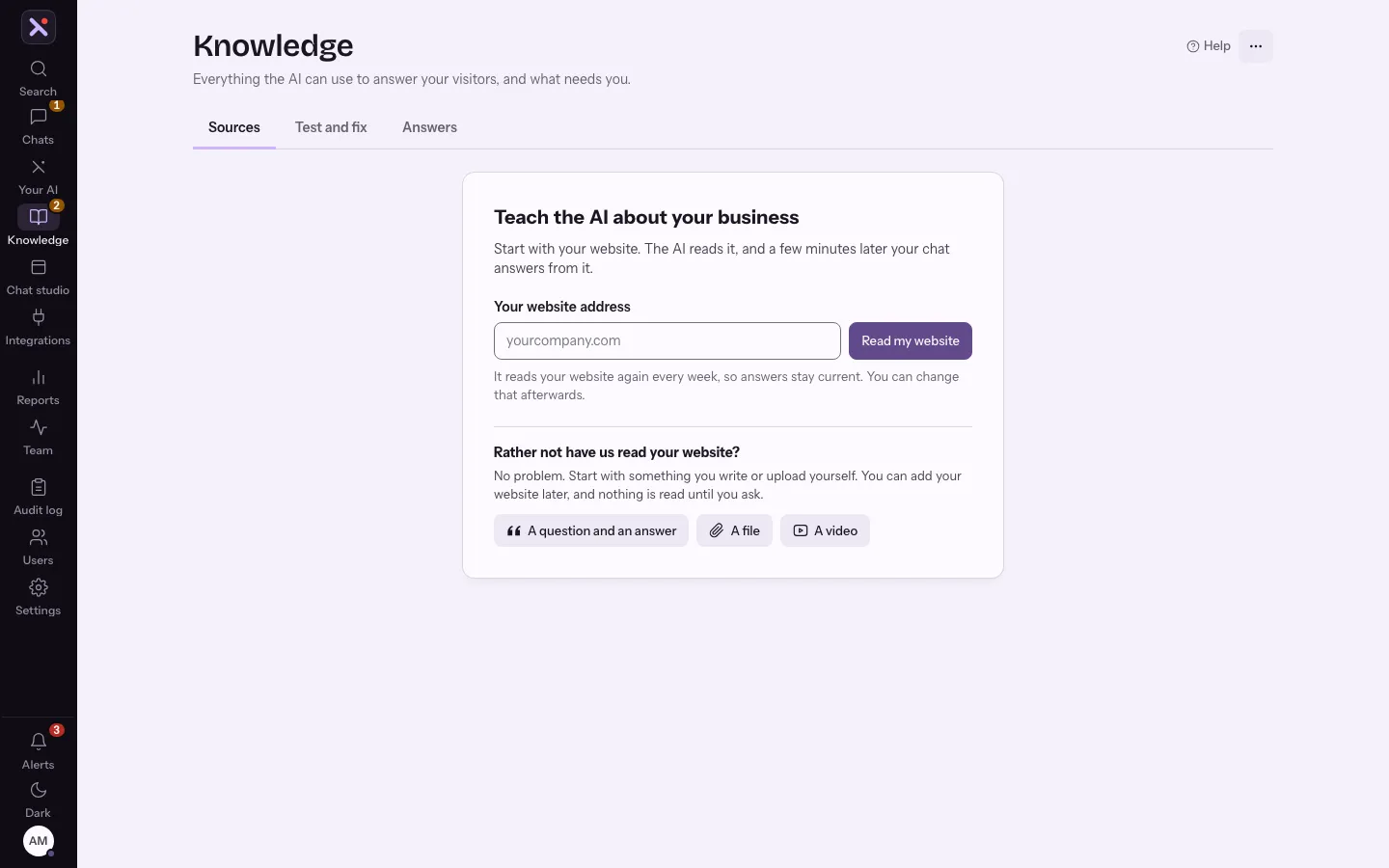
Type your address in Your website address, such as yourcompany.com, and press Read my website. The card shows each stage with a bar: “Getting ready to read…” (this can take a minute), “Finding the pages to read…”, then how many it has read (“12 of 40 pages read”). The whole read usually takes a few minutes. The card then offers Ask it a question, Tell the AI about your business and Put the chat on your site. If nothing could be read, it says why, with the button that fixes it when there is one, and Try again.
It is read again every week (Keeping it up to date). Rather not have your website read? Choose A question and an answer, A file or A video on the same card. Step by step: Connect your website.
Add more knowledge
Section titled “Add more knowledge”Add knowledge, at the top of Sources, opens a menu:
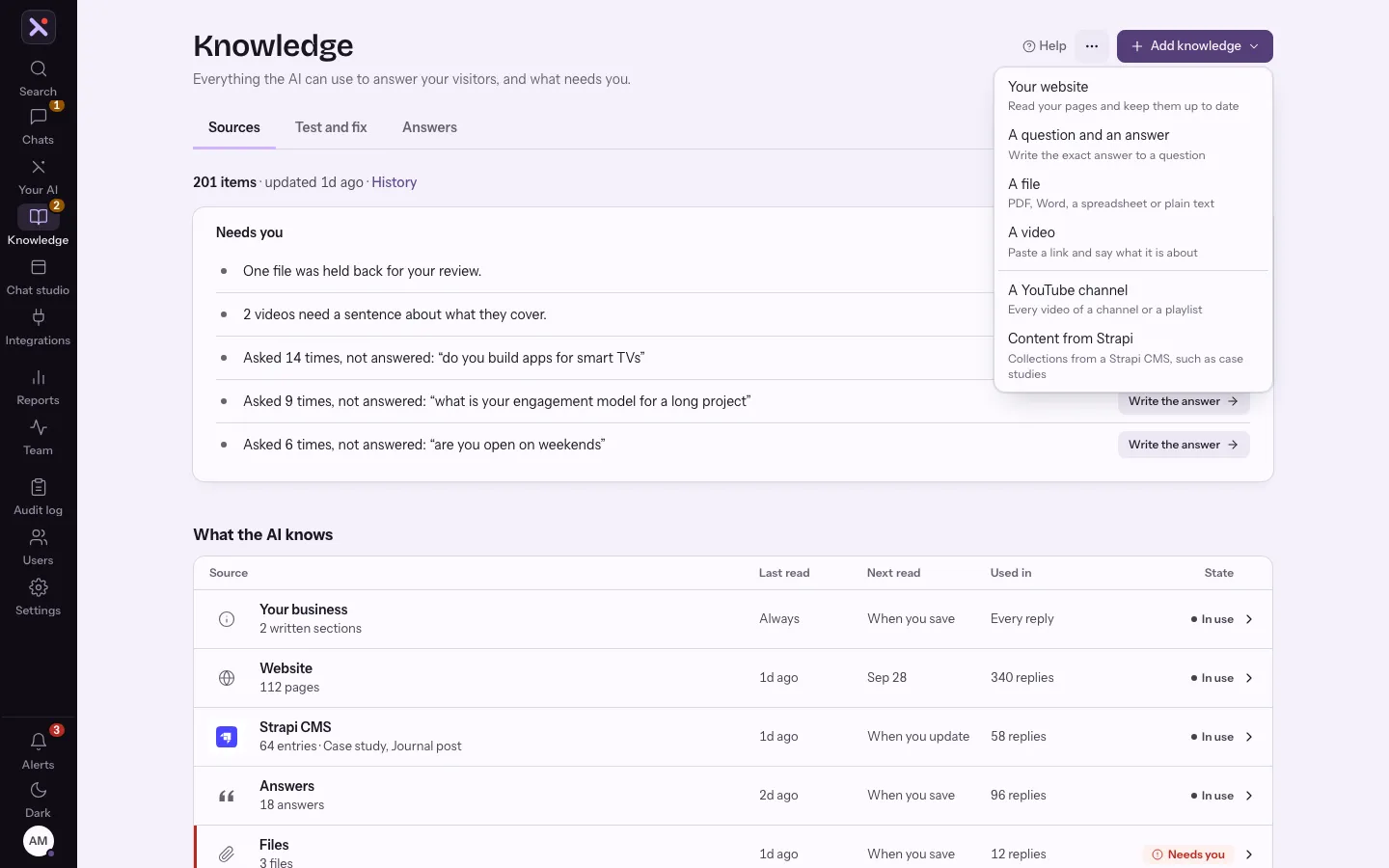
| Choice | Use it for |
|---|---|
| Your website | Your public pages. One address usually covers most questions |
| A question and an answer | The exact answer to one question, or a short note. The fastest fix for a wrong or missing answer |
| A file | Documents that are not on your website: a PDF, a Word file, a deck, a spreadsheet or plain text |
| A video | One video, added by its link with a sentence about what it covers |
| A YouTube channel | Every video of a channel or a playlist, read on the schedule you choose |
| Content from Strapi | Collections kept in a Strapi content system, read on the schedule you choose |
What the AI should always know (what you do, what you sell, your key facts) goes in Your business, the first row of the list. While your plan includes Text in pictures, an update also reads the words in your website’s pictures and in the files you upload.
Your platform administrator sets how many sources your company can have. Each website, group of answers, YouTube source and Strapi collection counts as one; so do all your files together, and all your videos together.
See what the AI knows
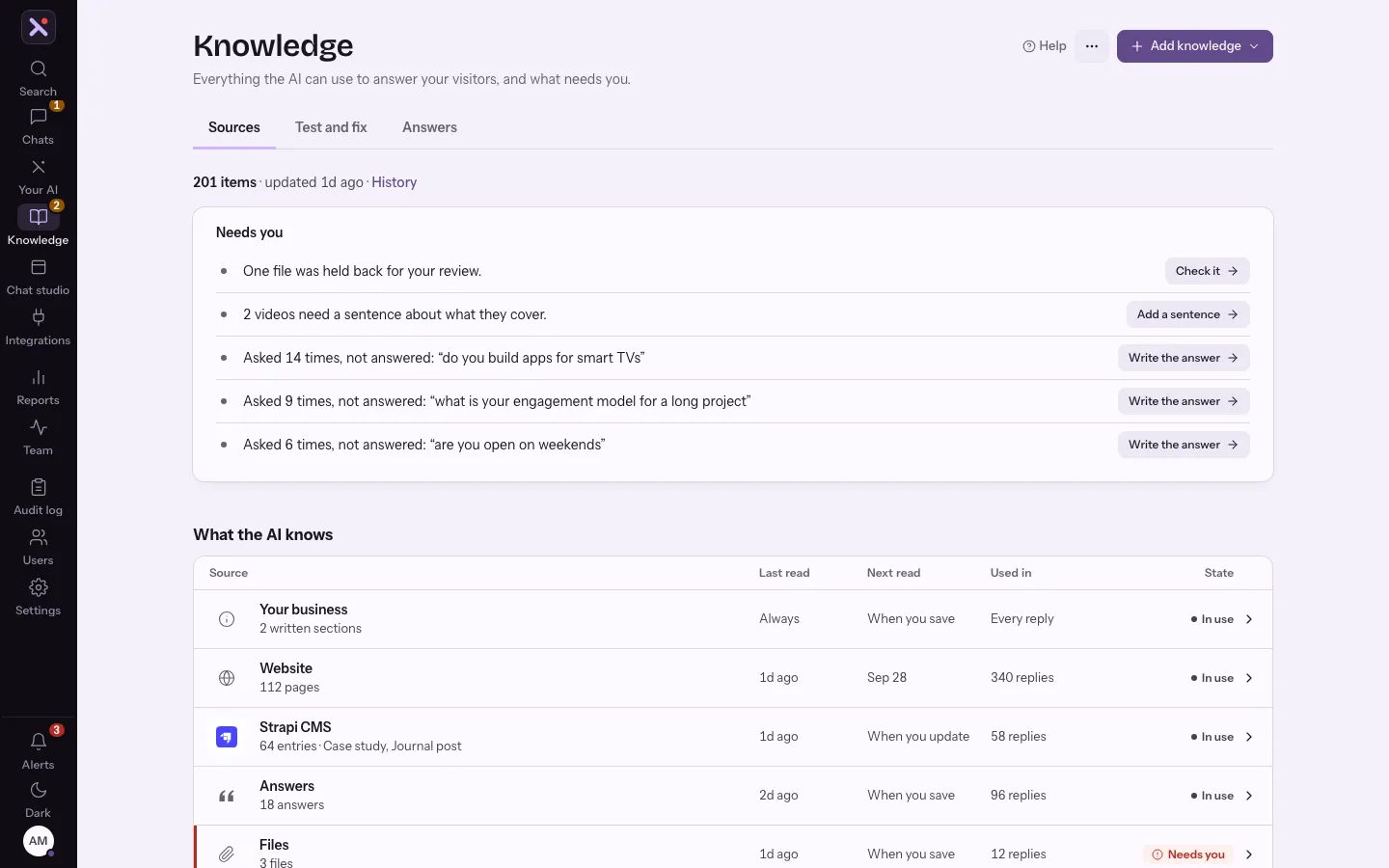
Section titled “See what the AI knows”A line at the top says how many items the AI can use and when it last updated (“all up to date” when nothing is waiting or wrong), with History (Update history). During an update it shows how far the update has got, in the same stages: “Updating: Getting ready to read…”, “Updating: Finding the items to read…”, then “Updating: 12 of 40 items read”. A source’s list of what the AI read (Pages, Entries, Videos or What it read) follows an update while its drawer stays open.
What the AI knows has a row for each thing, with Your business always first; press a row to open it. Each row shows the Source (its name and how much it holds, such as the number of pages), when it was Last read, its Next read (a date, “When you save” for answers, files and videos, or “When you update” for a source with no schedule), how many replies cited it in the last 30 days under Used in (a dash means none), and its state:
| State | What it means |
|---|---|
| In use | The AI uses it, and nothing is wrong |
| Needs you | Something needs a look: read Needs you above the list |
| Reading in a moment… | You saved a change and the AI reads it in about a minute |
| Press Update now | A saved change nothing will read by itself: press Update now at the top of the page |
| Reading… | The AI is reading it now; the row changes when it is done |
| Off | Switched off, so the AI is not using it. Open it and switch it on to use it again |
| Empty | Only on Your business: nothing is written yet. Open it and write a few lines |
Open a source
Section titled “Open a source”A source opens in a drawer at the right. A saved website, YouTube channel or Strapi has two tabs: what the AI read from it (Pages, Videos or Entries) and Set-up. Files have Files and What it read. Closing a drawer with something unsaved asks “Discard your changes?” first.
What the AI read from a source
Section titled “What the AI read from a source”This tab lists everything the AI took from a source, 25 to a page. Use it to find where a wrong or old answer came from, and keep that one page out.
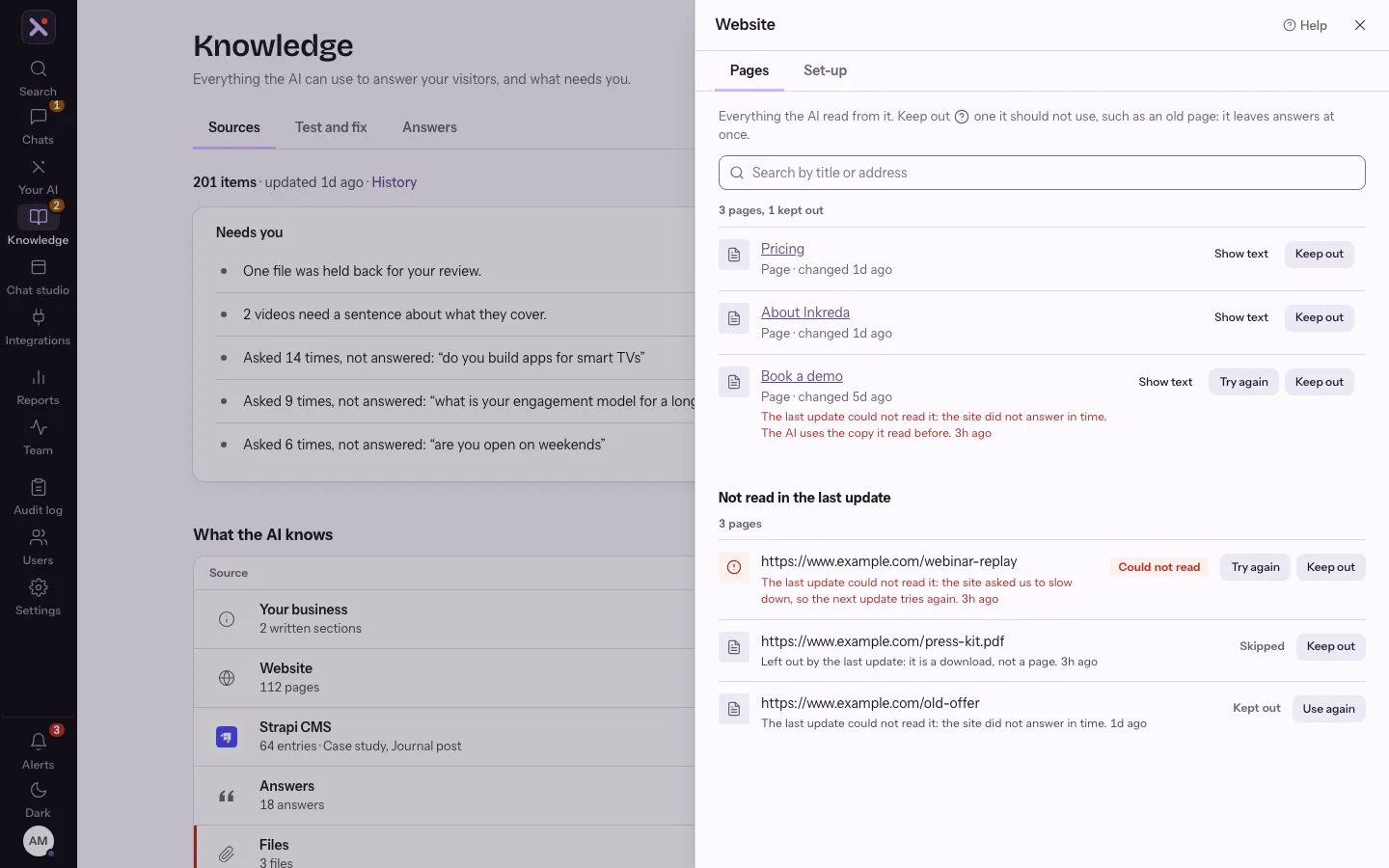
- Find an item. Search by title or address. Each row shows what kind of item it is and when it last changed; its title opens the page.
- Read what the AI holds. Show text shows the text the AI can be given from the item, in the pieces it is stored in.
- Keep an item out. Keep out takes it out of answers at once, with Undo, and the next update removes it. The row is then marked Kept out. Use again puts it back at the next update.
- See what was missed. Not read in the last update lists what the last update could not take, with the reason. Could not read has Try again, which updates the source now; Skipped was left out on purpose, such as a page with no text. Keep out stops updates trying a page that is gone. A scheduled update tells your team about a page it could not read once, and again only if the reason changes, so a page left here does not bring a new message at every update (Update history).
A row marked No longer used was taken out by an update, for example because the page left your site. When an update could not read an item again, the AI keeps the copy it read before.
Changes apply by themselves
Section titled “Changes apply by themselves”Saving a website, an answer, a file or a video, or keeping a page out, needs no second step. About a minute after your last save, the AI reads everything that changed, in one update, and “Saved. The AI starts reading in a moment.” confirms it. Turning something off, or keeping a page out, takes it out of answers at once. What an update reads and keeps: Update history.
- If an Admin turns Apply changes automatically off, a save says “Saved. Press Update now to read it.”, the row shows Press Update now, and an Update now button appears at the top of Sources (Knowledge settings).
Update now in the More for Knowledge menu reads everything again. If something turned off still has items stored, a window first lets you choose what to update (Update history).
When something needs you
Section titled “When something needs you”Needs you lists, in order: saved changes waiting for Update now, then what is wrong, then a reminder if the AI has not been told what your business does (Tell it), then up to three of last week’s questions it could not answer, each with Write the answer.
The most common:
| It says | What to do |
|---|---|
| “…saved changes the AI does not have yet.” | Press Update now: the AI reads those sources now |
| “…asks tools like ours not to read it…” | Only for your own site: press Read it anyway, switch it on in the drawer that opens, then save |
| “We could not reach…” | Check the address opens in a browser, then press Update now |
| “No pages were found on…” | Press Try following its links: the drawer opens with By following links chosen. Press Save |
| “…could not be read in the last update…” | Press See which: each page says why |
| “…their text only appears in a browser…” | Write an answer for what those pages say |
| “…held back for your review…” | Press Check it, then allow the file or remove it (Files) |
| “…with too little text for the AI to find…” | Press Add a sentence and say what each video covers (Videos) |
| “…would have removed most of what the AI knows from it…” | Its address or access probably changed: press Open it and check the set-up |
| “…reached the limit…” | Press Open it and remove something, or ask your platform administrator for more room |
| “…the AI service could not take it in…” | Ask your platform administrator to check the AI service, then press Update now |
Turn a source off or remove it
Section titled “Turn a source off or remove it”- One page or entry: Keep out on the source’s list of what it read takes it out of answers at once (above).
- A whole source, for now: open it and switch off Use this website, Use these answers, Use these files or Use this source (a website, a channel and a Strapi collection also need Save). It leaves answers at once and its row shows Off. What was read stays stored until an update that includes the source removes it.
- One answer, file or video: Remove on its row. It leaves answers at once.
- A website, a channel, a Strapi collection or a group of answers: a source that still has items stored cannot be removed. Turn it off, update it, then remove it from its drawer or menu: A website, YouTube, Strapi, answers.
- All of it: switch off Use your knowledge sources in Settings. The AI answers only from Your business, and Sources warns “The AI is not using any of this”.
Every source added, changed or removed, and every page kept out, is recorded in the audit log.
If something goes wrong
Section titled “If something goes wrong”| What you see | What to do |
|---|---|
| “A company can set up at most … knowledge sources…” | Remove a source you no longer need, or ask your platform administrator for more |
| Update now is greyed | An update is going, or nothing can be read yet |
| “…still stored, so the AI could still use them. Turn it off and press Update now first…” | Turn the source off, save, update it, then remove it |
| A file is greyed in the menu | File storage is not set up. Ask your platform administrator |
| “The AI is not using any of this” | Press Open the setting and switch Use your knowledge sources on |
Related
Section titled “Related”Reviewed
Source files for this page
shared/web/src/views/NeedsYou.tsxapps/dashboard/src/views/KnowledgeView.tsxapps/dashboard/src/views/SettingsDrawer.tsxapps/dashboard/src/views/knowledge/SourcesTab.tsxapps/dashboard/src/views/knowledge/SourceDrawer.tsxapps/dashboard/src/views/knowledge/SourceDocuments.tsxapps/dashboard/src/views/knowledge/FirstWebsite.tsxapps/dashboard/src/views/knowledge/startWebsite.tsapps/dashboard/src/views/knowledge/words.tsapps/dashboard/src/components/ui/side-drawer.tsxapps/dashboard/src/pageTabs.tsshared/web/src/pageMeta.tsapps/dashboard/src/pages.tsxservices/api/app/knowledge/knowledge_summary.pyservices/api/app/knowledge/knowledge_messages.pyservices/api/app/knowledge/knowledge_browser.pyservices/api/app/knowledge/ingest_sync.pyservices/api/app/knowledge/rag_sources.pyservices/api/app/routers/sources.pydocs/RAG.md

