See how it's going
Reports at a glance
Who can open itViewer: yesOperator: yesSupervisor: yesAdmin: yes
Where to find it
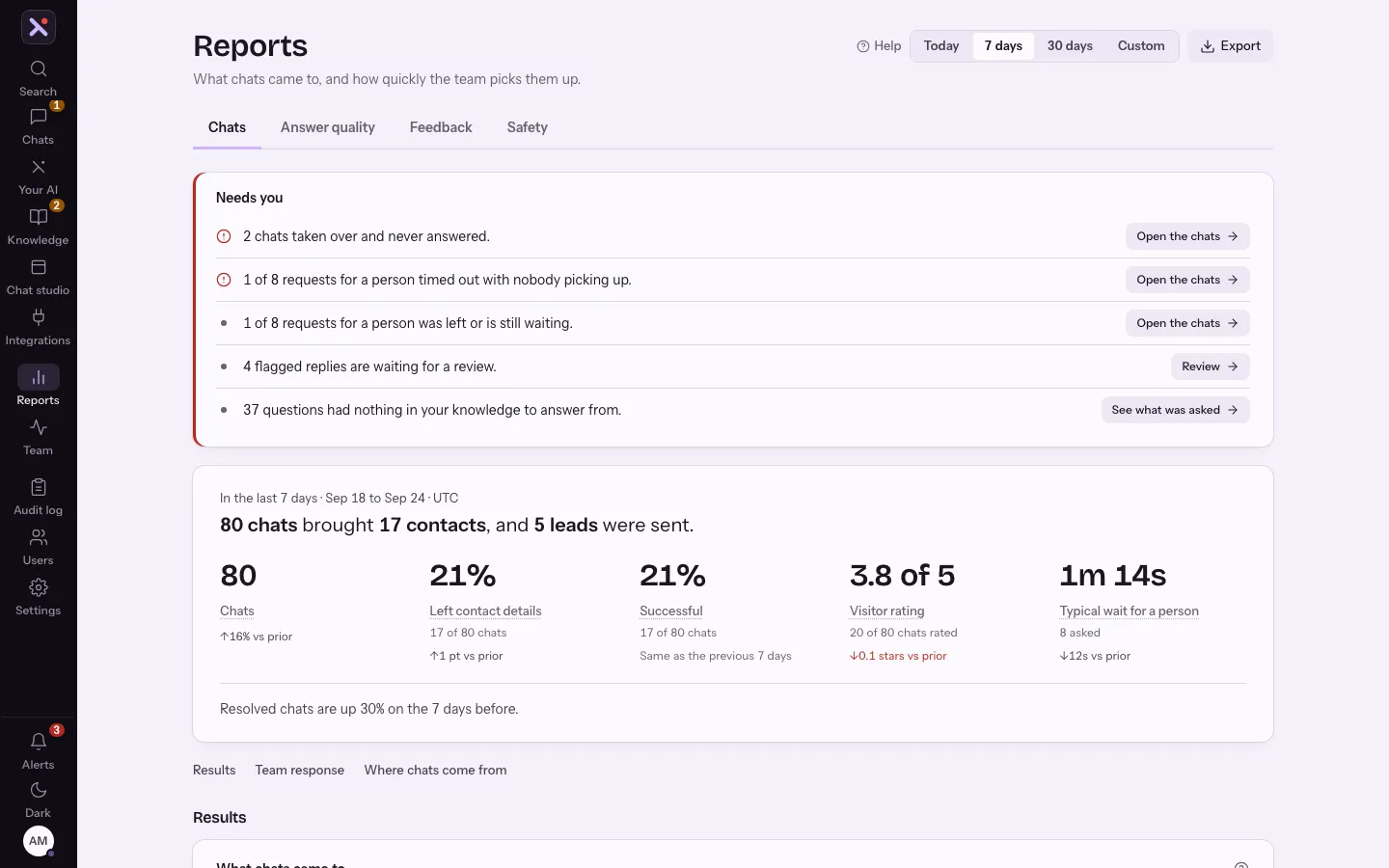
Section titled “Where to find it”In the menu, under Insight: Reports, with four tabs. Every role can open all four.
| Tab | Answers |
|---|---|
| Chats | How many chats you had, what they came to, how fast your team picked up, and where visitors came from. Reports: Chats, Where chats come from |
| Answer quality | How much of what visitors ask your knowledge can answer, and what to write next. Reports: Answer quality |
| Feedback | The stars visitors gave and the AI replies they flagged. Ratings, Flagged replies |
| Safety | Who is blocked or muted, who was turned away, and what the safety checks stopped. Safety |
Team, in the same group, is for Supervisors and Admins (and for Operators, only its points): Team.
Find the answer to a question
Section titled “Find the answer to a question”| You want to know | Look at |
|---|---|
| Is anything waiting for me right now? | Chats, the Needs you list at the top |
| How many chats did we have, and how many left their details? | Chats, the headline card |
| Did anyone ask for a person and get nobody? | Chats, Hand-offs: Timed out and Left or still waiting (Team response) |
| When should more of the team be on? | Chats, the heat map and Biggest gaps (Team response) |
| Which campaigns and pages bring visitors who leave their details? | Chats, Sources and Landing pages, sorted by Contact % (Where chats come from) |
| What should we add to our knowledge next? | Answer quality, Unanswered questions in this period |
| Why did visitors rate a chat badly? | Feedback, Ratings, with What went badly |
| Which AI replies did visitors object to? | Feedback, Flagged replies |
| Is someone abusing the chat, or is a limit too tight? | Safety, the headline and Visitors turned away most |
| Who is blocked or muted now? | Safety, Blocked and muted visitors |
| How is each team member doing? | Team, not Reports |
Who can do what
Section titled “Who can do what”Every role reads all four tabs. What you can do beyond reading depends on your role:
| You can | Viewer | Operator | Supervisor | Admin |
|---|---|---|---|---|
| Read every report, open the chats behind a figure, print or save as PDF | Yes | Yes | Yes | Yes |
| Save a report’s tables as spreadsheet files | No | Yes | Yes | Yes |
| Mark a flagged reply reviewed; lift a block or a mute on Safety | No | No | Yes | Yes |
| Press Write the answer beside an unanswered question; switch ratings, flagging and the weekly summary on | No | No | No | Yes |
A weekly routine
Section titled “A weekly routine”- Open Reports on Chats and work through Needs you: each line has the one button that deals with it.
- Read the headline card: the sentence says what the week produced, and each figure’s small arrow says how it moved against the week before.
- On Answer quality, write answers for the questions asked most that found nothing.
- On Feedback, read the lowest ratings first, and have a Supervisor mark flagged replies reviewed.
- Glance at Safety: a few per cent turned away is ordinary; a jump is worth a look.
What every report shares
Section titled “What every report shares”- The date buttons and the Export menu at the top right. Reports opens on the last 7 days, and switching tabs keeps your range. Date range, comparisons and export.
- A headline card: a line naming the days and time zone, one sentence on what the period produced, and the main figures.
- A ? beside a card’s title says how to read it. The sentence under a chart’s title is worked out from the figures by fixed steps, never by the AI.
- Most figures and rows open the chats behind them: the chat list opens on exactly those chats, with a link at its top that takes you back to the report on the same days.
- Days run midnight to midnight in your company’s time zone. A report only counts chats still kept (Data retention).
Reports only show. A rating, a flag or a figure never changes how the AI answers, closes or hands off a chat.
The weekly summary
Section titled “The weekly summary”An Admin can have the week’s figures sent to the team: Weekly summary under Settings, When to alert (When to alert). It is off until you turn it on, and needs Send alerts to the team on.
- Once a week, titled “Your week in chats”, with one sentence such as “Your website chat had 80 chats in the last 7 days, and 17 visitors left contact details.”
- When something waits, it adds “Needs you:” with the chats taken over and never answered, the requests for a person that timed out, and the flagged replies not reviewed.
- The figures: Chats, Left contact details, Successful and, when anyone rated, Visitor rating. Counts only, never what a visitor wrote.
- A link opens Reports on the last 7 days. Nothing is sent in a week with no chats.
- It goes to your team chat channel and by email, with the same figures, to the people whose alert choices include it, Available or Away (Your preferences).
Related
Section titled “Related”Reviewed
Source files for this page
apps/dashboard/src/pages.tsxapps/dashboard/src/pageTabs.tsshared/web/src/pageMeta.tsapps/dashboard/src/permissions.tsapps/dashboard/src/views/PerformanceView.tsxapps/dashboard/src/views/ReportPrint.tsxapps/dashboard/src/views/FeedbackView.tsxapps/dashboard/src/views/SafetyView.tsxapps/dashboard/src/views/InsightsView.tsxapps/dashboard/src/inbox/reportOrigin.tsshared/web/src/views/reports.tsxapps/dashboard/src/reportAttention.tsservices/api/app/reports/weekly_summary.pyservices/api/app/notifications/service.py

